Cut Paste Photos
- 3.8
- Rating
- 50.00M
- Installs
- Free
- Price

 Analysis by App-foxy
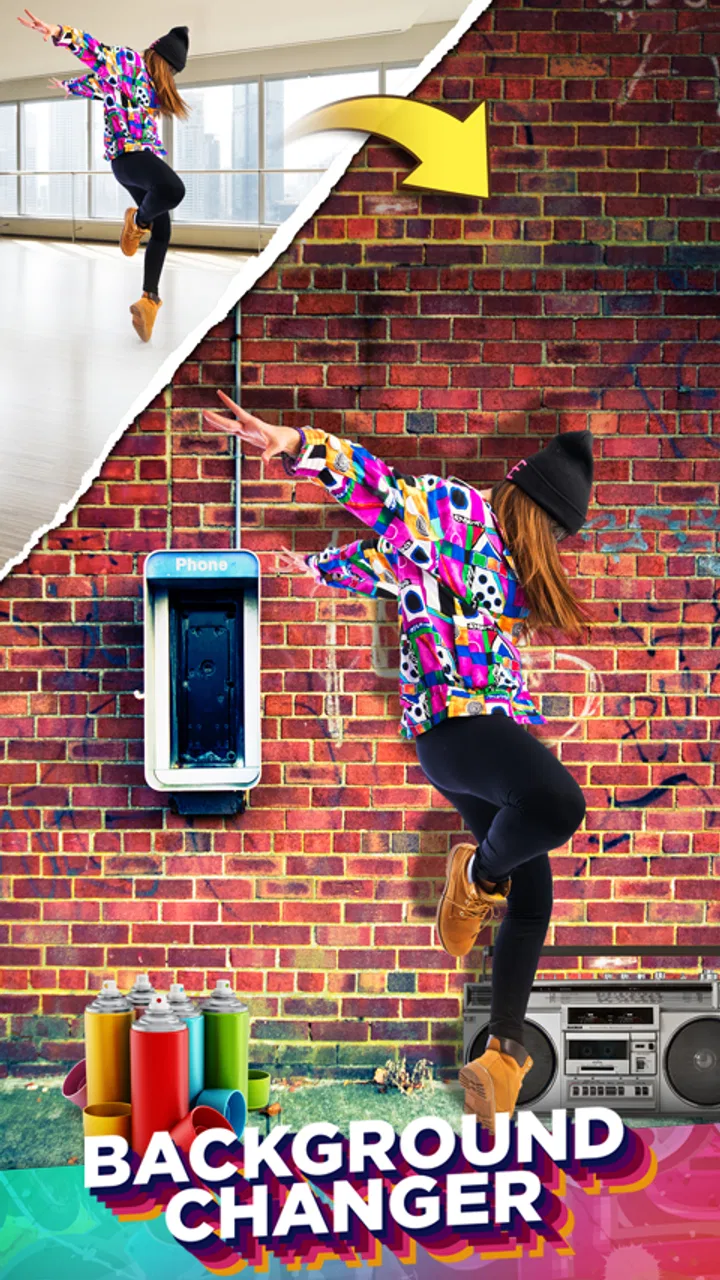
I used Cut Paste Photos as a practical editing tool rather than a full replacement for a desktop photo editor. Its main appeal is straightforward: it lets me separate a subject from one image, place it into another, build collages, create slideshows, and make basic retouching changes from a phone. That combination makes it useful for quick visual projects where speed matters more than perfect control.
Developed by Dexati, this free photography app has been available since September 12, 2014. It is rated for Everyone, works on Android 6.0 and later, and the current version is 11.1.0. The app has reached over 50 million installs, with an average score of 3.8 from around 278 thousand ratings. Those numbers suggest that it has broad practical appeal, although the rating also tells me not to expect a flawless experience on every device or for every editing style.
How the editing workflow feels in everyday use
The central idea is easy to understand. I start with a photo containing the person, object, or detail I want to keep, cut that element out, and paste it into another image. In a simple case, that might mean placing myself in front of a travel landmark I did not photograph at the right time. In a more useful everyday example, I could take a product photo for a small online sale, remove the distracting background, and put the item over a cleaner image before sharing it.
You May Also Like

 Blood Strike: 2.5 Anniversary
Blood Strike’s Loadouts Turn Every Drop Into a Tactical Gamble
A close look at Blood Strike’s custom loadouts: how fast access to signature weapons reshapes its battle royale rhythm, rewards preparation, and narrows the gap between fights.

 Pandora - Music & Podcasts
Pandora’s Music Is Easy to Start, but Harder to Recover
Pandora’s strength is its low-effort path from a seed to a station. Its weak spot is how much confidence it asks you to place in connection, setup, and quiet recovery.

 8 Ball Pool
 Is Built on Rivalries, Rematches, and Routine
A close look at the rivalries, rematches, shared routines, and unanswered safety questions that turn a quick pool match into a persistent mobile community.

 Samsung Music
’s Quiet Strength Is Playing What You Already Own
Its reach comes less from spectacle than from dependable access to a personal library. That simplicity is both the app’s strongest retention engine and its ceiling.

 AccuWeather: Weather Radar
AccuWeather Review: A Quick, Clear Forecast for Everyday Decisions
For everyday plans, the best forecast is the one you can understand quickly. AccuWeather makes rain timing, radar, and local conditions easy to act on, with a few trade-offs.

 Hill Climb Racing
Why Hill Climb Racing Still Turns Crashes Into One More Run
A tiny car, a bumpy hill and one more upgrade: Hill Climb Racing keeps resurfacing because its simple chaos makes every near-miss feel personal.
More From Our News Desk
View All News


The cut-and-paste workflow is also suitable for playful edits. I can combine people from separate pictures into one group scene, move an object into an unexpected setting, or prepare a humorous image for a chat. The important point is that the app is built around compositing rather than just applying filters. If your goal is to change the relationship between subjects and backgrounds, that focus is more relevant than a large collection of decorative effects.
I found the process most comfortable when I treated it as a sequence of small decisions. First, I chose a source photo with a clear subject. Then I worked around the outline carefully instead of trying to rush through the selection. Finally, I checked the pasted result at normal viewing size, because an edge that looks acceptable while zoomed in can appear rough when the finished image is shared.
That last check is especially important with hair, fingers, plants, and objects with thin edges. Cut Paste Photos can make a quick selection practical, but it should not be confused with a professional masking tool. The cleaner the original contrast between the subject and its background, the more convincing the result is likely to look. A busy background or similar colors around the outline can turn a five-minute edit into a frustrating one.
Collages are more useful when planned before opening the app
The collage editor gives the app a second purpose beyond cutouts. I can bring several images together for a family memory, a simple event recap, or a visual comparison. My advice is to decide the story of the collage first. For example, a sequence showing a meal from preparation to serving usually works better than filling every available space with unrelated photographs.
There is a practical trade-off here. A collage tool is convenient because it keeps the work in one app, but convenience does not automatically produce good layout. Too many photos can make faces and details tiny, while images with very different lighting can make the finished arrangement feel disjointed. I got better results by choosing fewer pictures and giving the most important one the largest visual area.
For a quick birthday greeting, a school memory, or a small announcement, that approach is enough. For a carefully branded social post, I would still prefer an editor with more precise controls over spacing, typography, alignment, and export preparation. Cut Paste Photos is strongest when the goal is a personal image assembled quickly, not a polished design system for repeated professional work.
Slideshows add a simple way to turn photos into a sequence
The slideshow maker is useful when a folder of still images feels flat but I do not want to learn a separate video editor. A short sequence of holiday photos, a family celebration, or a set of before-and-after images can be easier to watch than a long stream of individual pictures. The app’s value here comes from reducing the number of steps between selecting photos and making something shareable.
I would keep expectations realistic. A slideshow creator is not the same as a full timeline editor. If I need exact cuts, layered audio work, detailed motion, or fine control over transitions, I would move to a dedicated video application. For a casual montage, however, the simpler workflow can be an advantage because there are fewer controls to slow me down.
One useful habit is to arrange the photos in a deliberate order before starting the slideshow. The sequence should have a beginning, middle, and ending, even if the project is only a minute or two long. Starting with an establishing image, following with the main moments, and ending with a strong final photo makes the result feel intentional without requiring advanced editing skill.
Retouching is best treated as cleanup, not a complete beauty studio
The retouching side of the app rounds out the package. I see it as most useful for small corrections that improve an otherwise good picture. A minor distraction, an unwanted mark, or an element that pulls attention away from the subject can sometimes be handled more conveniently here than by switching between several separate tools.
There is a clear limit, though. Retouching can become unnatural when I remove too much or repeat the same correction across a textured area. Skin, fabric, walls, and foliage can reveal smudging quickly. I prefer making a modest adjustment, checking the whole image, and stopping before the correction becomes more noticeable than the original imperfection.
This is one reason I would not choose the app as my only editor for serious portrait work. It is handy for a quick improvement, but photographers who need detailed color management, selective adjustments, or a carefully controlled retouching workflow will likely find a more specialized application better suited to that job.
What the free access means for value
Cut Paste Photos is free to install, which makes trying its basic workflow low risk. That matters because the cutout process is personal: some people will find it quick and intuitive, while others will immediately want more precise selection controls. I would install it first with one or two realistic projects in mind rather than assuming that a long feature list automatically makes it the right editor.
The app also contains optional in-app purchases priced from $1.99 to $99.99 per item. Since those purchases cover a wide range, I would review what is offered inside the app before paying and decide whether the specific upgrade solves a problem I actually have. The free entry point is valuable for experimentation, but I would not treat every available purchase as automatically good value.
For me, the important distinction is between occasional use and repeated use. If I only need to cut out a subject for one invitation or make a single collage, the free access may be enough. If I use the app frequently and a paid option removes a recurring annoyance, that could be worthwhile, but the decision should depend on the exact feature and my editing habits rather than on the app’s install count or popularity.
I also appreciate that the age rating is Everyone, because the basic concept is accessible to a broad audience. A parent could use it with a child for a simple creative project, while a casual adult user could make a social image without learning a complex desktop program. That does not mean every result will be professional; it means the starting point is approachable.
Where it competes well with usual alternatives
Compared with a basic phone gallery editor, Cut Paste Photos offers a more focused way to combine separate images. Standard gallery tools are usually excellent for cropping, rotating, and making quick light adjustments, but they are not generally built around moving a subject from one photo into another. When that is the task, this app is more relevant than the editor already installed on the phone.
Compared with a broad design platform, it feels more direct for cutouts and informal photo manipulation. A design-focused alternative may be better for templates, text-heavy layouts, consistent branding, and polished social graphics. I would choose that kind of tool when the design itself is the main project. I would choose Cut Paste Photos when the photograph and the act of combining images are the main focus.
Compared with a professional desktop editor, the difference is even clearer. Desktop software normally offers deeper selection refinement, layers, masks, color correction, and export controls. That power is valuable for demanding work, but it also adds time and complexity. Cut Paste Photos earns its place when I need a result on a phone and can accept some limitations around precision.
The app therefore occupies a useful middle ground. It is more specialized than a normal gallery editor, but less demanding than professional image software. That position explains both its appeal and its weaknesses: I can get from an idea to a shareable image quickly, but I should not expect the same level of control as a tool designed for advanced compositing.
Small techniques that improve the final result
My first practical tip is to choose the source image for the cutout, not merely the destination image. A subject photographed against a plain wall or a contrasting background is usually a better starting point than a high-resolution photo where the outline disappears into similar colors. Better source material often saves more time than trying to repair a poor selection later.
My second tip is to match scale before judging realism. If the pasted person or object is too large, the edit looks artificial immediately. If it is too small, it may lose detail and appear disconnected. I compare the subject with nearby objects in the destination image, especially furniture, doors, vehicles, or people, because those references help establish believable proportions.
A third useful workflow is to create a clean cutout specifically for reuse. If I expect to make several related images, I can spend extra time on one careful selection and then use that subject in different scenes. This is more efficient than repeating a rushed cutout for every new composition, particularly for a small product, a mascot, or a recurring family photo project.
For collages, I recommend grouping photos by purpose before importing them. A folder of similar moments is easier to arrange than a camera roll containing screenshots, duplicates, and unrelated pictures. This sounds simple, but it changes the editing experience: I spend less time searching and more time deciding which image deserves attention.
For slideshows, I would also avoid using every photograph from an event. Selecting only the clearest and most meaningful images produces a stronger sequence. Duplicate poses and near-identical frames make a slideshow feel slow, while a smaller set of distinct moments gives it a clearer rhythm.
Limitations I would consider before installing
The biggest limitation is precision. Cut-and-paste editing depends on clean edges, and not every photograph provides them. Hair, transparent objects, shadows, and overlapping subjects can require patience. If your regular work involves detailed product isolation, professional portrait composites, or images that must look perfect at close inspection, I would start with a more advanced editor instead.
The second limitation is that several functions share one app without necessarily matching the depth of dedicated alternatives. The collage maker, slideshow creator, and retouching tools make the package versatile, but versatility can mean that each area is less specialized. That is a fair trade for casual users, yet it may feel restrictive once a project becomes more demanding.
The third consideration is the purchase structure. Free installation makes testing easy, but optional purchases can change the value calculation for someone who wants a fully equipped workflow. I would use the free version long enough to identify the exact point where I feel limited. Only then would I consider spending money, and I would compare that cost with a specialized alternative I already understand.
Performance can also depend on the images and the phone. Large photos, multiple collage elements, or slideshow projects may feel less comfortable on older hardware than simple single-image edits. Because the minimum supported system is Android 6.0, the app is available to many older Android users, but support for an older operating system does not guarantee the same smooth experience on every device.
Who will get the most from it
I think Cut Paste Photos is a good fit for someone who wants creative photo manipulation without committing to a complex editor. It suits casual social posts, family projects, humorous composites, simple product images, and quick collages. It is also a sensible first experiment for a beginner who wants to understand cutouts and compositing through practical projects rather than lessons about advanced editing theory.
It can be especially useful for small sellers or hobby creators who need to isolate an item and place it on a cleaner background. I would still inspect the edges carefully before publishing, but the workflow can be faster than opening a desktop editor for a one-off image. The same applies to teachers, parents, and students preparing a visual project where originality matters more than studio-level finish.
I would skip it as my main tool if I needed dependable professional masking, sophisticated portrait retouching, detailed typography, or a repeatable brand workflow. In those situations, a dedicated photo editor or design application is likely a better investment. I would also skip it if I dislike experimenting with selections, because the central cutout feature is where much of the app’s usefulness—and much of its potential frustration—comes from.
My buy-or-skip verdict
I would try Cut Paste Photos if my immediate need were to cut a subject from one picture, paste it into another, make a casual collage, or turn a group of photos into a simple slideshow. The free installation removes much of the risk of testing it, and the combination of tools is more practical than a basic gallery editor for these specific jobs.
I would not pay for optional items immediately. I would first complete a real project, see whether the selection quality and workflow suit me, and then judge whether a particular purchase offers enough value for the way I use the app. The available purchase range runs from $1.99 to $99.99 per item, so treating every paid option as one uniform value would be a mistake.
My final view is positive but measured. Dexati’s app is a useful phone-based photography tool with a clear strength in quick cut-and-paste compositions, supported by collages, slideshows, and basic retouching. Its 3.8 average from a large user base reflects a product that works for many people but still involves compromises. Choose it for fast, accessible photo combinations; skip it when precision and professional control matter more than convenience.
FAQs for Cut Paste Photos
01What is Cut Paste Photos and what can I do with it?
Cut Paste Photos is a photo-editing app designed for combining elements from different images into one composition. After testing its main tools, the most useful feature is the ability to cut a person, object, or selected area from one picture and paste it onto another background. It is suitable for creative collages, humorous edits, profile images, posters, and simple social media content.
02Is Cut Paste Photos easy to use for beginners?
Yes, the app is generally approachable for beginners because its editing process follows a simple sequence: choose a source image, select the object or person to remove, refine the edges, and place the cutout on another photo. The result depends on how carefully you trace around the subject. Users may need a little practice with detailed hair, fingers, or irregular edges, but basic edits can be completed without professional experience.
03Does Cut Paste Photos require an internet connection?
Many of the basic editing functions in Cut Paste Photos can usually be used directly on the device after the app and its required resources have been installed. However, an internet connection may still be needed for downloading the application, displaying advertisements, accessing certain online features, or obtaining additional content. Availability can vary by version, so users should check the app’s current store description before relying on it offline.
04Is Cut Paste Photos free to download and use?
Cut Paste Photos can generally be downloaded without an upfront payment, but the free experience may include advertising, optional purchases, or limitations on particular tools and exported results. Before editing a large project, it is worth checking whether the selected features are available in the free version and whether saving or sharing adds a watermark. Pricing and premium options may differ between Android and iOS versions.
05How good are the final results when cutting and pasting photos?
The quality of the final image depends mostly on the original photo, lighting, resolution, and accuracy of the selection. Cut Paste Photos works well for straightforward subjects with clear contrast against the background, while complex outlines may require manual cleanup. After positioning a cutout, users should also adjust its size and placement carefully so the composition looks natural. It is a convenient tool for quick edits, although it may not replace advanced desktop software.
Pros
- Simple cutout tools make subject selection accessible to beginners.
- Useful for creating collages
- stickers
- memes
- and profile images.
- Supports creative combinations using multiple photos and backgrounds.
- Quick editing workflow is convenient for casual social media projects.
- Can help remove distracting backgrounds without advanced editing skills.
Cons
- Precise cutting can be difficult around hair
- fingers
- and other fine details.
- Some features or content may require in-app purchases or subscriptions.
- Edited images may lose quality when using low-resolution source photos.
- The interface may feel limited for users wanting professional editing controls.
- Ads can interrupt the editing process
- depending on the app version.

Cut Paste Photos
Gallery